Using ToolHive
Introduction
The ToolHive UI is the fastest way to get from zero to a working MCP setup on your local machine. It helps you discover servers, run them securely, and connect your AI clients without juggling Docker commands, config files, or manual client setup.
Within the ToolHive platform, the UI gives you a desktop portal for the same local runtime and built-in registry that the CLI uses. If you want the lowest-friction first run with ToolHive, start here.
The UI can also connect your local AI clients to the broader ToolHive platform. You can use it with MCP servers or gateways managed by the Kubernetes Operator, and browse catalogs served by a ToolHive Registry Server.
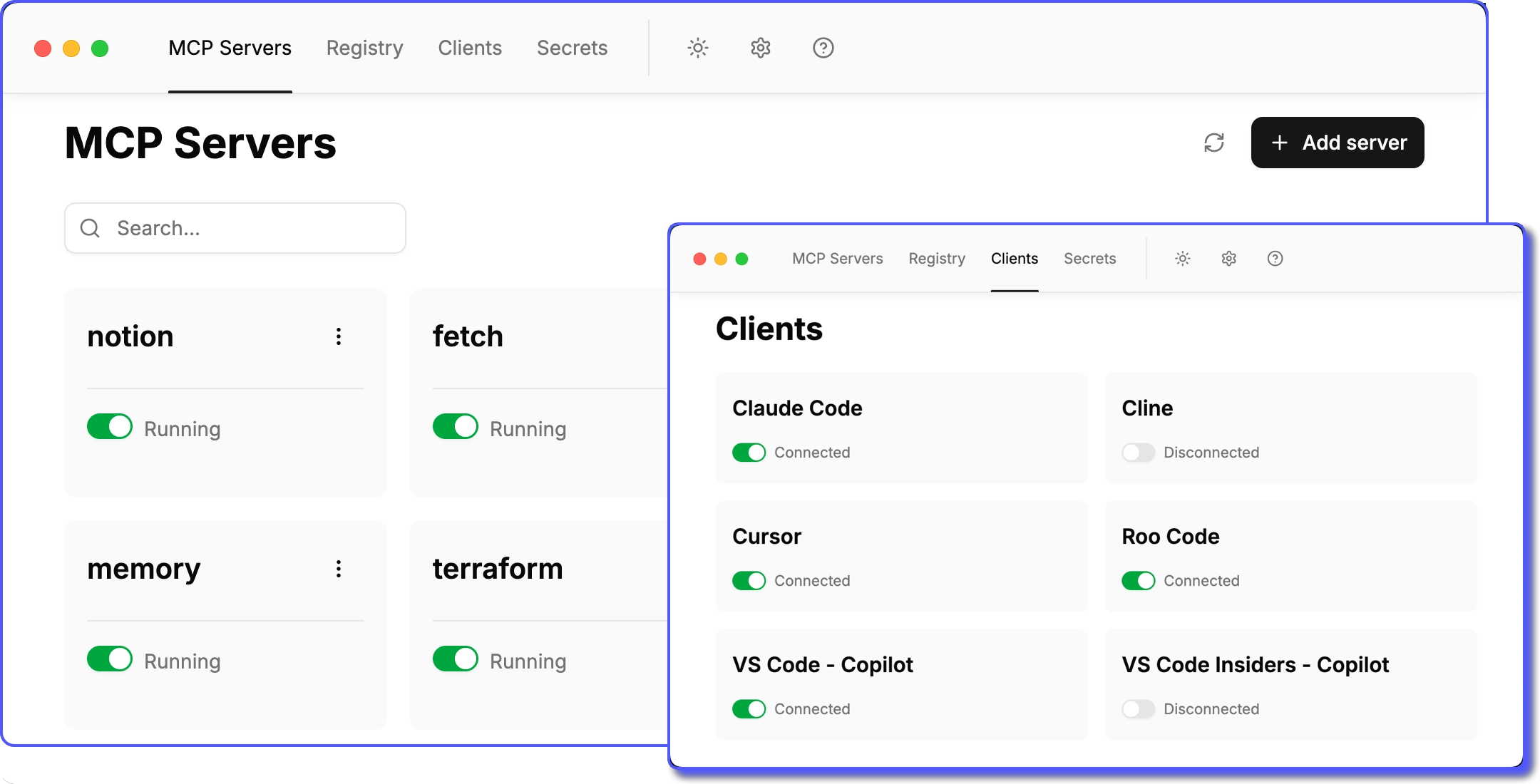
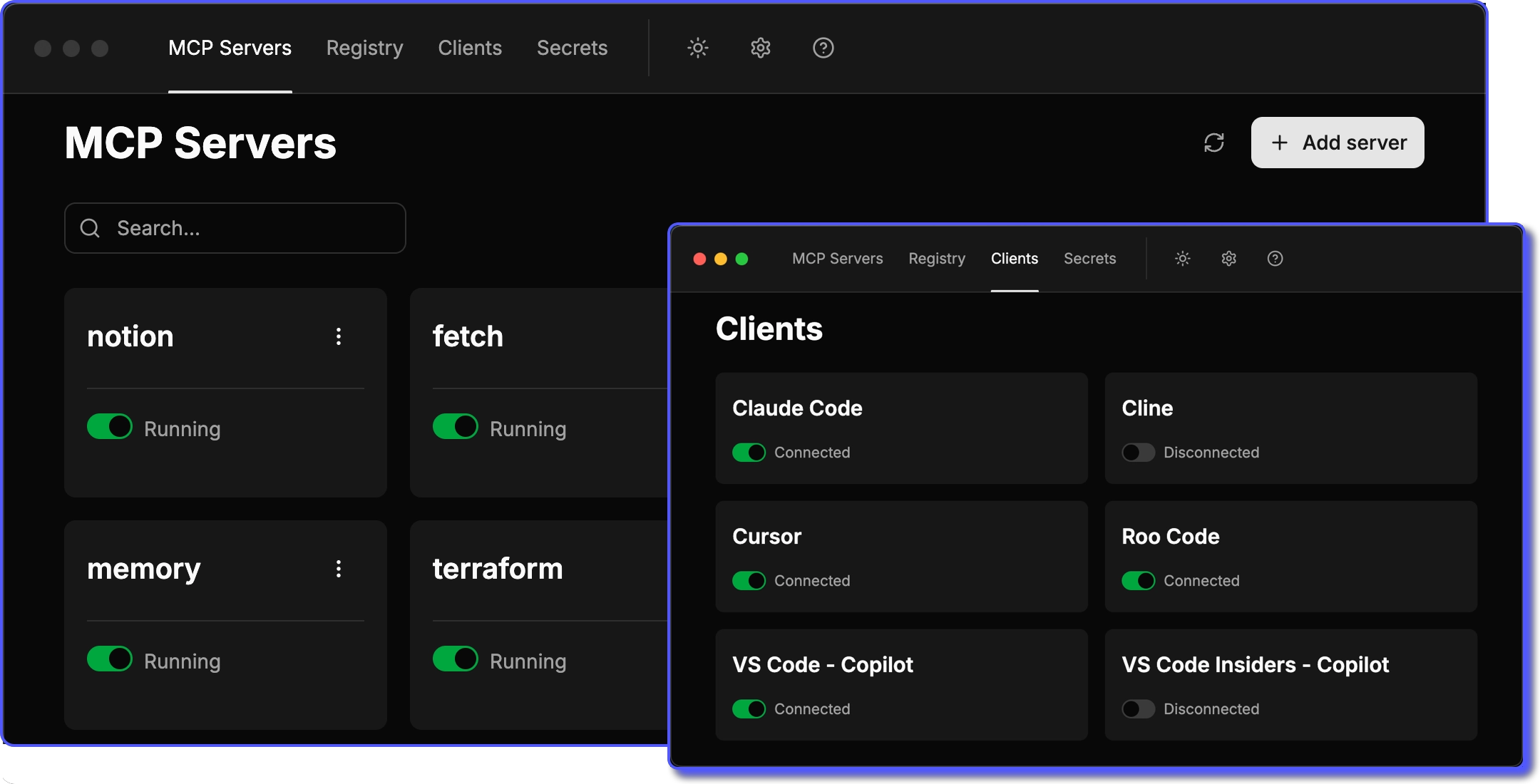
We strive to make ToolHive intuitive and easy to use. If we've missed the mark on something, let us know!
ToolHive UI includes and manages the CLI automatically for terminal access and advanced features. See Access the CLI from ToolHive UI for details.
Where to start
- New to ToolHive? Follow the Quickstart to install the app and run your first MCP server in minutes.
- Already installed? Jump straight to Run MCP servers to discover and launch servers from the built-in registry.
- Want to connect your AI client? See Client configuration to point Claude, Cursor, or another client at your running servers.
Contents
Quickstart
Install the ToolHive desktop app and run your first MCP server in minutes.
Install ToolHive
Install the ToolHive desktop app on macOS, Windows, or Linux for graphical MCP server management.
Use the registry
Search built-in or custom registries to find and install MCP servers in the ToolHive desktop app.
Run MCP servers
How to install and run MCP servers in the ToolHive UI
Client configuration
Connect ToolHive to Claude, Cursor, VS Code, and other AI clients using the desktop app.
Access the CLI from ToolHive UI
How to use the ToolHive CLI when using the ToolHive UI application for advanced features and terminal-based workflows.
Optimize MCP tool usage
Enable the MCP Optimizer to enhance tool selection and reduce token usage.
Test MCP servers
Use the playground feature to test and validate MCP servers directly in the ToolHive UI with AI model providers.